The following lesson was created for the New Teacher Program currently in place at the Tri-Creek School Corporation. Students were engaged in a variety of technology, which was used to enhance the instructional message being presented with this Life Science lesson. Take a look at all the work that was put into this lesson.
Overview: InfuseLearning is a great student response system. It allows multiple types of quick response questions including Drawings!
Quizzes are also a breeze with their quiz creator. Not only can students take their assessments online, but InfuseLearning will translate the quiz for an ESL student, or it will also read the quiz to students who have that need.
Blogging is an easy way to stay in touch with parents and share all of your amazing classroom projects. Take a look at the following video and document to get started with Blogger.
Kahoot! is an easy-to-use student response system. It makes giving quizzes engaging. Teachers and students would benefit from using Kahoot! from time to time in the classroom. Why not create a Kahoot for the end of the year and have a classroom competition.
If anyone wants to create a Kahoot! account, please email Joe or Me (Dan) and we will send your names off to the folks at Kahoot!. We can then get you started on creating and delivering quizzes in a game-type format.
NEW FEATURES (week of 3/6/2013)
Just in this week, Kahoot! allows for quick polls and surveys. I can't wait to try them out and see how these can be used to make the classroom more interactive.
Check out the resources below for more information.
We have made it to our tenth vodcast and this week we were focused on Google Scripts. The three scripts we focused on can assist teachers with productivity, organization, assignment management, and grading all while using the lovely Google Tools we have grown to love.
Here are the links to the Google Scipts we shared this week:
Doctopus and Goobric! No, I didn't just lose my mind. And no, these aren't SpongeBob characters.
Even though Doctopus looks like he eats at the Krusty Krab, Doctopus and Goobric are just the names of two Google Scripts that teachers should learn and love.
Doctopus
To access Google Scripts create a Spreadsheet from Google Drive and go to the Tools >Script Gallery. The script I would suggest you try with an assignment is Doctopus by Andrew Stillman. Check out this interview in which he explains why he created the Doctopus Google Script.
First develop an assignment to pass out to students. As an example, this could be a writing prompt or an "essential question" students have to answer in a Project-Based Learning (PBL) lesson. Then, with the project direction, create at least one Google Doc to distribute to students. After your assignment is ready to be distributed, create a Google Spreadsheet with student names, gmail addresses, and group names (if applicable). When the spreadsheet is completed, go to Tools > Script Gallery and search for Doctopus. Then, install it onto the spreadsheet.
Once Doctopus is installed on the Google Spreadsheet, the spreadsheet will have a Doctopus label listed in the menu--as displayed in the image below.
After that, Doctopus just walks teachers through the sharing process, which is pretty straightforward. Just click the newly installed Doctopus menu item. Then, there are four main steps to complete.
STEP 1: Set up Sharing Basics:
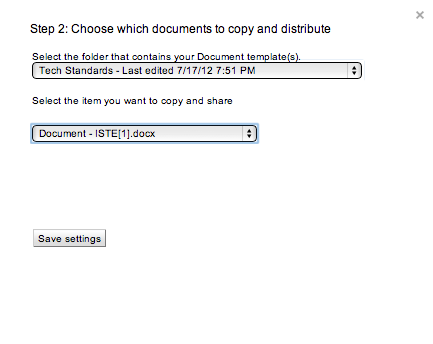
STEP 2: Choose the Documents to Copy and Distribute:
STEP 3: Choose Destination:
STEP 4: Copy and Share Documents:
Goobric
Goobric is an rubric extension for Doctopus. You have to download Goobric from the Chrome Web Store--as circles here in a Google Chrome Browser:
Once in the Chrome Web Store, search for Goobric and download the extension to your Google Chrome browser. When available for use, Goobric's eye will display within the web adress bar.
Goobric Walkthrough Video
The following video from Jay Atwood is extremely informative and a great resource for Goobric. It is a little on the quiet side but worth putting in headphones to hear:
I put these screenshots together to demonstrate how easy it is to record audio on your classroom iPads. As the teacher, you will have to login to your account for these apps. Then, have students complete these steps to record...
Writings
Passage reading
Reflecting on learning (exit slips)
Book Reviews
Student presentations
Small Moments
How-tos
Messages to family members
Messages to other classes
This list is not exhaustive and there is much more you can do with these apps. Be creative and use it for a learning objective that can be enhanced by recording audio.
When students finish their recordings you can then upload their work to a class blog or Edmodo page. As a warning, each of these apps have a limited amount of time for recording. So, it helps if students have something ready to record prior to arriving at the listening/recording center.
You've probably heard a picture is worth a thousand. I have many fond memories of sitting around with family looking at old pictures. As a kid, I was always intrigued by photos from the 50s, 60s, and 70s. It left such an impression on me that I can't image those time periods in high definition. In my mind, the 1950's had to be in black and white. Then, the 1960's color scheme was just slightly off from reality.
Anyway, Narrable allows you to upload images and record audio with your computer's mic or you can even call in to record. Check out a final product from the Narrable website and think about how you could use this in the classroom.
One drawback to Narrable is that it isn't completely free. With Narrable you start with five free Narrables. But, at the moment, every Narrable you share earns you another free Narrable. So, share your work through email, Facebook, Twitter, or embed the Narrable on blog.
Currently, the folks at Narrable are working on an iPhone capture app that will allow users to take a photo, record audio and then upload it to Narrable.
With Narrable you can:
Create family histories
Interview family members across the country about photos
Reflect on field trip photos
Create micro a yearbook for class trips, clubs, or small classes
Here is a list of additional options for response systems. Take a look at the options below and find one or two that work for you. The goal is not to overwhelm you with choices but to provide you with options that will work for your unique needs.
Edcanvas is an art canvas for educational resources online. This web-based technology allows teachers to curate a hotlist of resources for students to maximize time on-task. Rather than having students waste time searching for reliable online resources, Edcanvas organizes resources on one page and allows for annotations. Students can also create an Edcanvas without using an email address. Why not have students research a topic and create an online bibliography with a canvas? How about creating a list of websites that help describe a student's passion and personality? What about bookmarking information related to a personal learning quest? Ultimately, teachers and students can create playlists to promote learning with this amazing web-based tool.
Edcanvas can be integrated on Edmodo easily. To do this, Edcanvas has placed an Edmodo option within the Share Button. The user will be asked to login to Edmodo, which will allow teachers to upload the canvas to their Edmodo class page or library.